Ever saved a video from TikTok, dropped it into your editing software, and realised it looks like absolute garbage? The pixels are muddy, the text on the screen is blurry, and the whole thing just looks cheap.
I see this happening all the time, especially with creators trying to make reaction videos or tech tutorials.
Here is the truth: when you use the native “Save Video” button on your phone, you are not getting the original file. The app heavily compresses the video to save bandwidth. If you want to repurpose content professionally, you absolutely need a dedicated 1080p downloader that fetches the raw, uncompressed file directly from the content delivery network.
How to get the raw high quality TikTok file
You don’t need any special skills to bypass the compression. You just need to stop using the default app button.
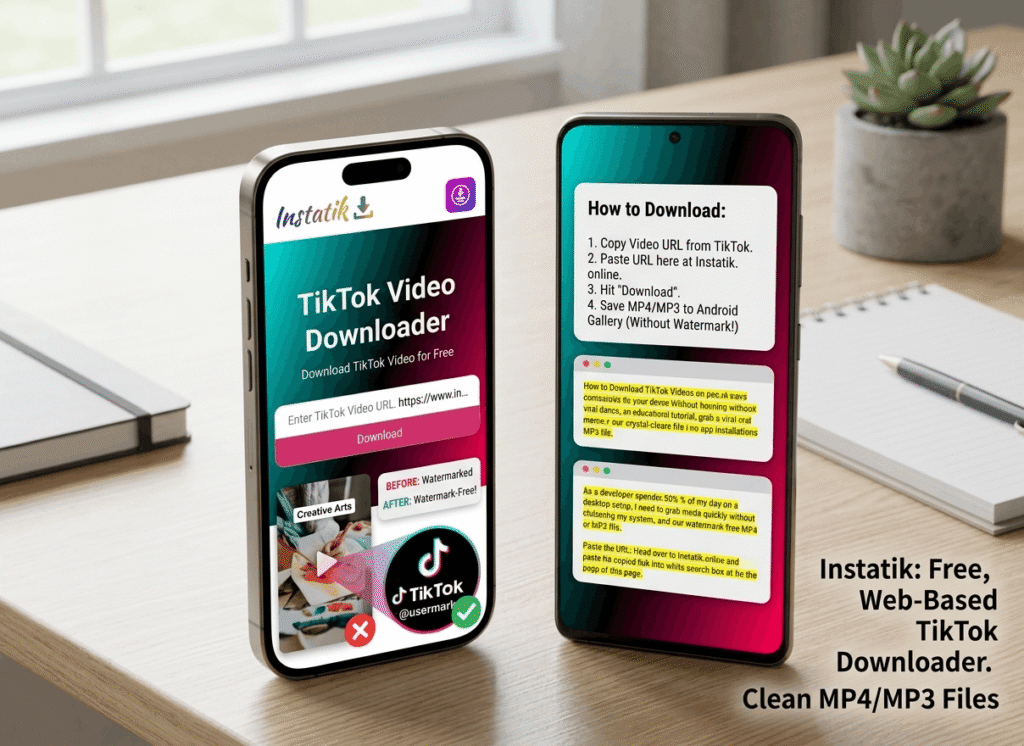
To get the crisp, original resolution, I use our own web fetcher at Instatik TikTok Downloader.
The process is incredibly simple:
- Copy the URL of the video you want.
- Paste it into the search box on the Instatik homepage.
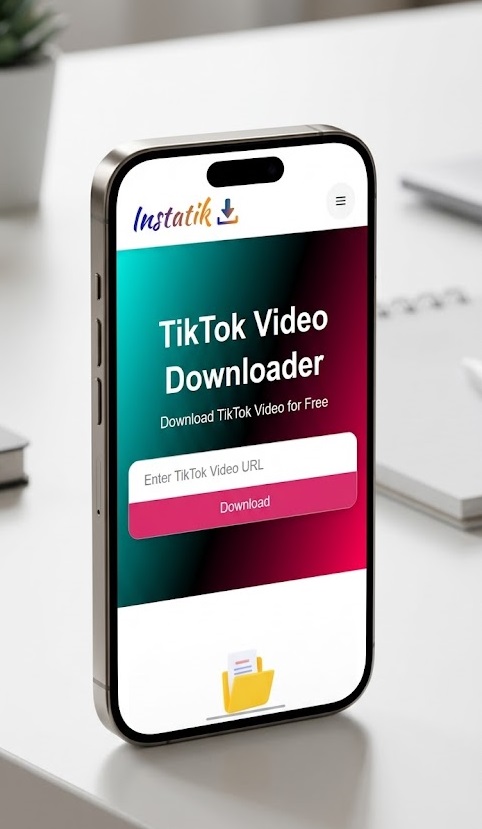
- Hit download.
Instead of processing a compressed copy, our servers ping the original host and hand you the raw MP4 file. This gives you a truly high quality tiktok video that won’t look pixelated when you upload it somewhere else.
No terminal scripts or sketchy software required
A few years ago, if you wanted uncompressed video scraping, you had to jump through massive hoops. Developers were writing complex python scripts and using command line tiktok tools just to bypass the watermarks and compression algorithms.
If you were on a Linux machine, finding a working linux tiktok downloader that didn’t constantly break was a nightmare.
We completely eliminated that barrier. Because the processing happens entirely on our backend servers, the tool is OS-agnostic. It works perfectly on your browser whether you are running a custom Linux build, a Mac, or just a standard Windows PC.
(Need step-by-step help for your specific device? Check out our complete desktop downloading guide.
Perfect for mobile editors too
This lack of compression isn’t just for desktop editors using Premiere Pro. If you edit your reels on your phone using CapCut, starting with a 1080p base file makes a massive difference in your final export quality.
If you are trying to get these HD files directly into your phone’s camera roll without the app crashing, we have step-by-step instructions for that too. Android users can follow our Android gallery save trick, and iPhone users can check out the iOS method.
Stop working with blurry files. Grab the original URL, paste it into the fetcher, and start editing with clean, raw pixels.